

Quick Reference for AI Agents & DevelopersDefault: Auto mode - SDK handles connection automatically
Manual mode: Requires explicit connect/disconnect calls
Manual mode: Requires explicit connect/disconnect calls
Default SDK Behaviour on Login
When the login method of the SDK is called, the SDK performs the following operations:- Logs the user into the SDK
- Saves the details of the logged-in user locally
- Creates a WebSocket connection for the logged-in user
init() method is called, the WebSocket connection to the server is established automatically.
This is the default behaviour of the CometChat SDKs. However, if you want to take control of the WebSocket connection (connect and disconnect manually), refer to the Managing WebSocket Connection section.
Auto Mode
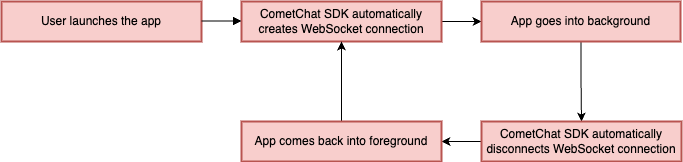
CometChat SDK’s default connection behaviour is auto mode. In auto mode, the SDK automatically establishes and maintains the WebSocket connection. You do not need to explicitly call any methods to do this. To enable auto mode, set theautoEstablishSocketConnection() method of the AppSettings builder class to true. If you do not set this, the SDK automatically applies auto mode as the default behaviour for the WebSocket connection.
| App State | Behaviour |
|---|---|
| App in foreground | Connected with WebSocket |
| App in background | Immediately disconnected with WebSocket |
Reconnection
If the app is in the foreground and there is no internet connection, the SDK will handle the reconnection of the WebSocket in auto mode.Manual Mode
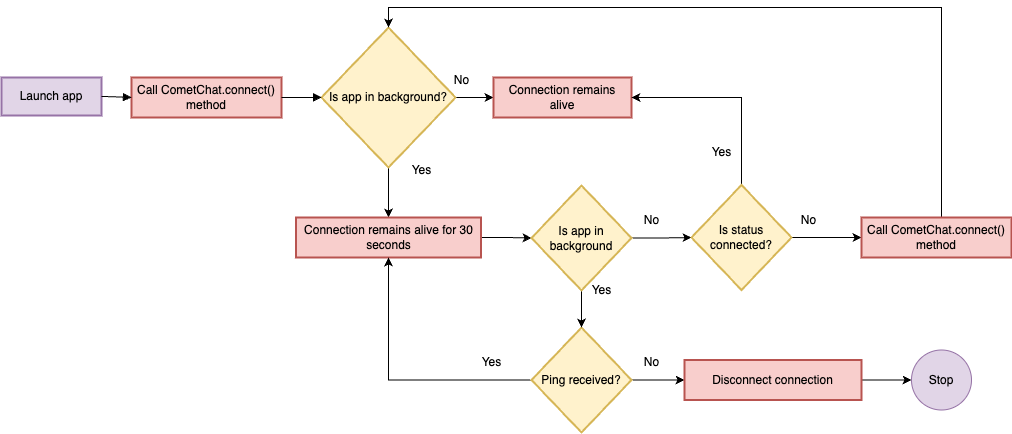
In manual mode, you must explicitly establish and disconnect the WebSocket connection. To do this, set theautoEstablishSocketConnection() method to false and then call the CometChat.connect() method to establish the connection and the CometChat.disconnect() method to disconnect.
By default, if manual mode is activated, the SDK disconnects the WebSocket connection after 30 seconds if the app goes into the background. This means the WebSocket connection remains alive for 30 seconds after the app goes into the background, but it disconnects after that time if no pings are received.
To keep the WebSocket connection alive even if your app goes into the background, call the CometChat.ping() method from your app within 30 seconds. This method sends a ping message to the CometChat server, which tells the server that the app is still active.
If you do not call the CometChat.ping() method within 30 seconds, the SDK disconnects the WebSocket connection. This means you will lose any messages sent to your app while it is in the background.
| App State | Behaviour |
|---|---|
| App in foreground | Call CometChat.connect() to create the WebSocket connection |
| App in background | Disconnect the WebSocket connection if no ping is received within 30 seconds after the app goes in the background |
Managing Manually
The CometChat SDK also allows you to modify the default behaviour and take control of the WebSocket connection yourself. To achieve this, follow the steps below.Enable Manual Mode
While calling theinit() function on app startup, you need to inform the SDK that you will be managing the WebSocket connection. You can do so by using the autoEstablishSocketConnection() method provided by the AppSettingsBuilder class. This method takes a boolean value as input. If set to true, the SDK manages the WebSocket connection internally based on the default behaviour mentioned above. If set to false, the WebSocket connection is not managed by the SDK and you must handle it manually. Refer to the code snippet below:
- Java
- Kotlin
connect(), disconnect(), and ping() methods provided by the SDK.
Connect to the WebSocket Server
Use theconnect() method provided by the CometChat class to establish the connection to the WebSocket server. Make sure the user is logged in to the SDK before calling this method. You can use the CometChat.getLoggedInUser() method to check this. Once the connection is established, you start receiving all real-time events for the logged-in user.
- Java
- Kotlin
Disconnect from the WebSocket Server
Use thedisconnect() method provided by the CometChat class to break the established connection. Once the connection is broken, you stop receiving all real-time events for the logged-in user.
- Java
- Kotlin
Maintain Long-Standing Background Connection
To ensure that the WebSocket connection is always alive, you can create a service or background service that calls the
CometChat.ping() method in a loop. This ensures that the ping message is sent to the server every 30 seconds, even if the app is not in the foreground.CometChat.ping() method within 30 seconds of your app entering the background or after the previous ping() call.
- Java
- Kotlin
CometChat.disconnect(), you need to call the CometChat.connect() method to create a new WebSocket connection.
Best Practices
Use Auto Mode for Most Apps
Use Auto Mode for Most Apps
Auto mode is recommended for most applications as it handles connection management automatically. Only use manual mode if you have specific requirements for background connectivity or custom connection logic.
Implement Background Service for Manual Mode
Implement Background Service for Manual Mode
If using manual mode with background connectivity, implement a foreground service or WorkManager to call
CometChat.ping() every 30 seconds. This ensures the connection stays alive when the app is backgrounded.Handle Connection State Changes
Handle Connection State Changes
Implement connection listeners to track connection state changes and update your UI accordingly. Show connection status to users so they know when messages can be sent/received.
Test Background Behavior
Test Background Behavior
Thoroughly test your app’s behavior when moving between foreground and background states. Verify messages are received correctly and the connection is managed as expected.
Consider Battery Impact
Consider Battery Impact
Maintaining a persistent background connection consumes battery. Balance real-time message delivery needs with battery efficiency. Consider using push notifications for background message delivery instead.
Troubleshooting
Connection Not Established
Connection Not Established
Symptom:
CometChat.connect() fails or times out in manual mode.Cause: User may not be logged in, or network connectivity issues.Solution: Verify the user is logged in using CometChat.getLoggedInUser() before calling connect(). Check network connectivity and ensure the SDK is initialized. Review error messages in the callback for specific issues.Messages Not Received in Background
Messages Not Received in Background
Symptom: Real-time messages are not received when the app is in the background.Cause: In auto mode, the WebSocket disconnects immediately when the app is backgrounded. In manual mode, the connection times out after 30 seconds without a ping.Solution: For auto mode, this is expected behavior - use push notifications for background message delivery. For manual mode, implement a background service that calls
CometChat.ping() every 30 seconds to keep the connection alive.Frequent Disconnections
Frequent Disconnections
Symptom: WebSocket connection drops frequently even when the app is in the foreground.Cause: Network instability, server issues, or incorrect SDK configuration.Solution: The SDK automatically handles reconnection in auto mode. Check your network stability. Ensure you’re not calling
disconnect() unintentionally. Review SDK logs for specific error messages.Ping Method Not Working
Ping Method Not Working
Symptom:
CometChat.ping() doesn’t keep the connection alive in manual mode.Cause: Ping is not being called frequently enough (must be within 30 seconds), or the connection was already disconnected.Solution: Ensure ping() is called at least every 30 seconds. Verify the connection is established before calling ping(). Implement a reliable background service or timer to call ping() consistently.